AegisAI Perspectives · 136
Gmail's built-in protection stops malware and risky links but not every attack, so map each setting to its default and edition, then test your tenant.
See it on your own Google Workspace or Microsoft 365 tenant. No MX change.
Or get the Q3 2026 State of the AI Attack report (free, instant download)
Not ready for a demo? Check your domain (free, about 10 seconds).
Built-in Gmail protection is enough against malware in attachments and links, not every attack: AegisAI reports on its inbound email security page that 3 in 10 confirmed phishing emails cleared native Gmail and Microsoft filters in Q3 202625. Google states that some spam still reaches the inbox15.
AegisAI investigates every email for what it is trying to do, and removes the ones that fail from every mailbox they reached24. If you run IT for a company of 20 to 500 people on Google Workspace, with a small IT or security team and no SOC, run the test on this page before you buy anything. The product side is on the inbound email security page. How to add a second layer is in how to add a third-party email security layer to Google Workspace, and what to look for in one is in the best email security for Google Workspace. This page is the coverage map and the test.
Key takeaways
- Gmail's default is to display warnings and move untrustworthy email to the spam folder1.
- Security Sandbox is off by default and is included only in some Workspace editions89.
- Each advanced Safety setting judges an attachment, a link or the sender, set under Apps, Google Workspace, Gmail, Safety3.
- Phishing found after delivery stays in the inbox if the recipient already opened it, until an admin removes it19.
- Business email compromise losses reported to the FBI were $3,046,598,558 in 202520.
| Question | Answer | Source |
|---|---|---|
| Is Google Workspace's built-in email security enough, or do I need a third-party tool? | Yes for malware and risky links when the Safety settings are on2. Not on its own for every attack: some spam still reaches the inbox, and opened phishing stays until an admin removes it. | Google Workspace Admin Help |
| What does Gmail do by default? | It displays warnings and moves untrustworthy email to spam. Attachment settings keep mail in the inbox with a warning unless you change the action5. | Google Workspace Admin Help |
| Which protections depend on my Workspace edition? | Security Sandbox: Frontline Plus; Business Standard or Plus; Enterprise Standard or Plus. Gmail log events: Frontline Plus, Enterprise Plus or Education Plus16. | Google Workspace Admin Help |
| What happens to phishing Gmail finds after delivery? | Unopened messages are reclassified and removed. Opened ones remain until removed by hand. | Google Workspace Admin Help |
| How do I find out which case I am in? | Run the eight step test below and count reported phishing that reached inboxes in 30 days17. | Google Workspace Admin Help |
Short on time? Watch the explainer, or book a demo.
Gmail scans every message for malware, whether or not the attachment settings are turned on. By default it displays warnings and moves untrustworthy email to the spam folder.
The stronger settings are opt in. Each attachment setting offers three actions: keep the email in the inbox with a warning (the default), move it to spam, or quarantine it. Security Sandbox is off by default. Enhanced pre-delivery message scanning slightly delays a suspicious message so Gmail can run extra checks11.
Open Apps, Google Workspace, Gmail, Safety today and write down the action each setting uses.
They stop where the message gives them nothing to scan. The advanced settings sit in three groups: Attachments; Links and external images; Spoofing and authentication. A request with no attachment, no link and a sender that passes authentication gives those three groups nothing to act on.
That is the shape of business email compromise. Losses reported to the FBI's Internet Crime Complaint Center were $3,046,598,558 in 2025, against $2,770,151,146 in 2024, per the 2025 IC3 Annual Report20.
Some gaps sit inside the groups too. Encrypted attachments can't be scanned for malware4. Google states that some spam is sent to the inbox instead of the Spam label. When Gmail reclassifies a phishing message after delivery, an opened message remains in the inbox until it is removed by hand.
Read native email protection against business email compromise for the request side of this gap, then run the test below.
Run this test on your own tenant over 30 days. It needs an admin with the Gmail Settings administrator privilege and one with the Security center administrator privilege.
Check your edition against the edition row in the short answer table.
Open Apps, Google Workspace, Gmail, Safety. Record the action on every setting in the three groups. Note any still on the default warning.
Check Security Sandbox. It is off unless someone turned it on.
Check enhanced pre-delivery message scanning, which delays suspicious messages for extra checks.
Check DMARC. SPF or DKIM must be on before DMARC can be used, and Google recommends starting with the policy set to none1213. A domain still at none after months has not moved to enforcement.
Find the phishing that reached inboxes. On an edition with Gmail log events, use the investigation tool to list every user who received each reported message. On other editions, count the phishing reports staff sent to IT.
For each message from step 6, record whether it was opened.
Sort the messages into two piles: those with a link or attachment, and those with neither.
If step 8 leaves an empty second pile and steps 2 to 4 show every setting on, Google Workspace's built-in email security is covering your mail. If the second pile has payment or account requests in it, no Safety setting read them.
Each built-in protection reads one part of a message, so each misses the message that lacks that part.
| Protection | Where it is set | Default | What it covers | What it misses | Source |
|---|---|---|---|---|---|
| Malware scanning | Always on | On | Every message, whether or not attachment settings are on | Encrypted attachments, which can't be scanned | |
| Attachment protection | Apps, Google Workspace, Gmail, Safety | Keep in inbox and show warning | Risky attachment types, with a spam or quarantine action if you choose it | A message with no attachment | |
| Links and external images | Apps, Google Workspace, Gmail, Safety | Warnings shown | Links behind short URLs, linked images, clicks to untrusted domains | A message with no link | 6 |
| Spoofing and authentication | Apps, Google Workspace, Gmail, Safety | Warnings shown | Spoofed domain names, employee names, your own domain, unauthenticated mail | A sender that passes authentication | 7 |
| Security Sandbox | Gmail settings, Admin console | Off | Office documents, .exe files and PDFs, with a scan of a few minutes | Editions outside the supported list | 10 |
| Enhanced pre-delivery scanning | Gmail settings, Admin console | Not stated on the page | Extra checks on suspicious content before delivery | Content Gmail does not flag as suspicious | |
| DMARC | Your domain's DNS records | Unusable until SPF or DKIM is on; start at policy none | Mail claiming your domain | A real sender that passes authentication | |
| Post-delivery phishing removal | Automatic | Automatic | Unopened messages reclassified as phishing | Messages the recipient already opened | |
| Investigation tool, Gmail log events | Security center | Edition dependent | Every user who received a reported message | Editions without Gmail log events |
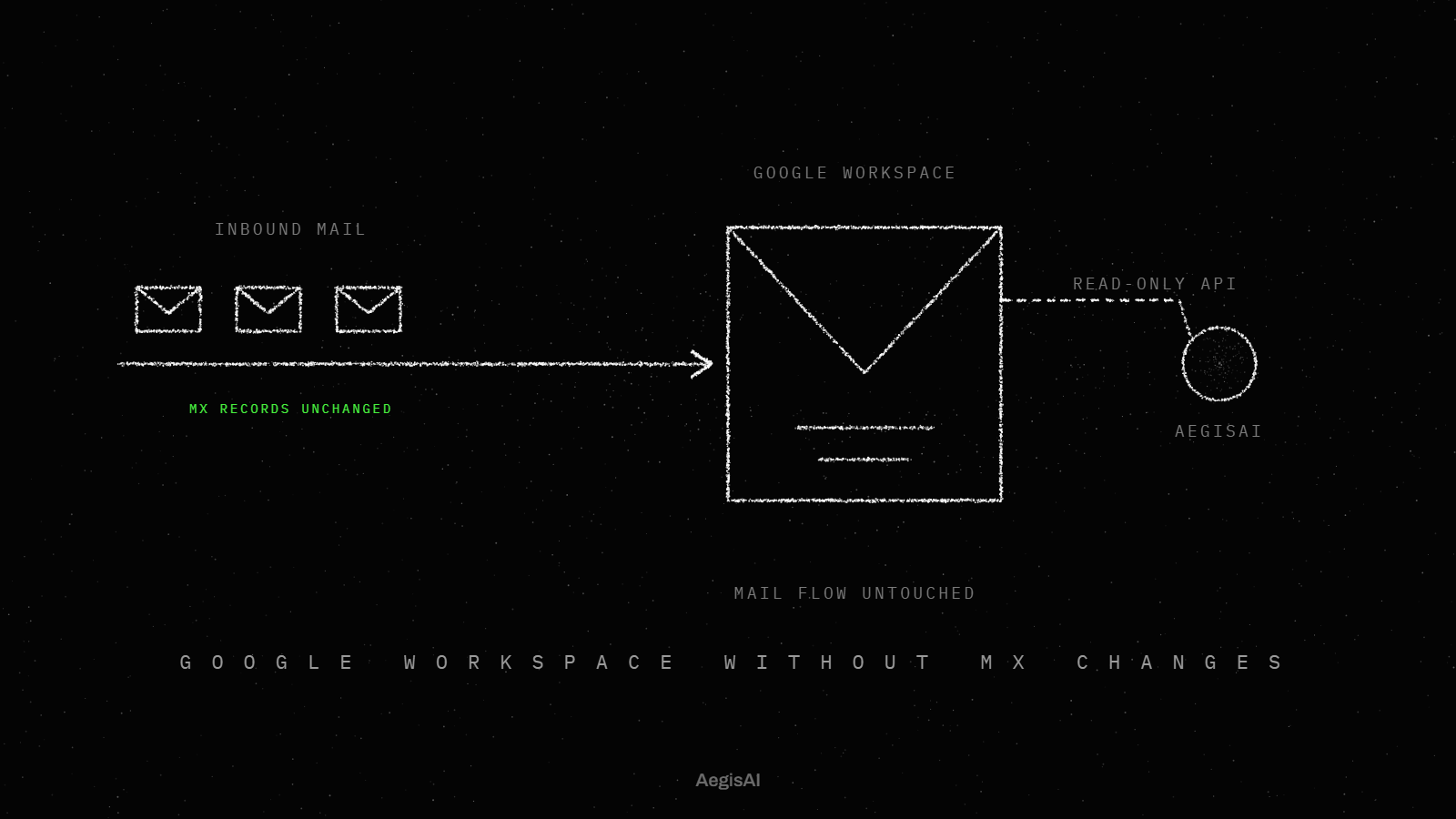
Gmail's own checks act before delivery, and an API layer that removes mail from mailboxes acts after it. Keep every built-in setting on whatever you add.
AegisAI investigates every email for what it is trying to do, and removes the ones that fail from every mailbox they reached. Catches fake executives, vendors and payment requests, even with no link or file to scan22. Every verdict comes with its reason in plain language, so your team can check it and share it23.
On one tenant, the test ends with two piles: reported phishing with a link or attachment, and requests with neither.
Illustrative example, figures are fictional: Harbor Lane Studio (fictional) has 140 people on Google Workspace Business Standard and one IT lead. In step 2 she finds every attachment setting still on the default warning. Security Sandbox is included in her edition but is off, so she turns it on. Business Standard has no Gmail log events, so for step 6 she counts the phishing reports staff sent her over 30 days: 23. In step 8, 14 had a link or attachment and 9 had neither. Six of the 9 asked for a bank detail change or a payment, and 4 had been opened. She keeps the built-in settings on and starts a trial of a second layer on the second pile.
Run the same eight steps on your tenant this month.
Track three numbers, each from a place you can open.
To compare a second layer against these numbers on your own tenant, ask for a test on your own tenant. Put the three figures side by side on day 30 and decide on them.
Not for every attack. Gmail scans for malware and warns on untrustworthy mail, but Google states some spam still reaches the inbox. For requests with no link or file, add a layer that reads intent: AegisAI investigates every email for what it is trying to do.
No. The Security Sandbox setting is off by default, and only the editions in the short answer table include it.
Only unopened messages. Unopened messages detected as phishing after delivery are reclassified and removed; opened ones need an admin.
Only the three editions in the short answer table include them. On those editions the investigation tool can list every user who received a reported message.
No. Turn on SPF or DKIM first, then publish DMARC with the policy set to none, as Google recommends for a start.