AegisAI Perspectives · 138
Turn on the Gmail Safety protections and pre-delivery scanning, publish SPF and DKIM before DMARC, and turn off automatic forwarding in Google Workspace.
See it on your own Google Workspace or Microsoft 365 tenant. No MX change.
Or get the Q3 2026 State of the AI Attack report (free, instant download)
Not ready for a demo? Check your domain (free, about 10 seconds).
Turn on these Gmail security settings first: Safety protections and enhanced pre-delivery scanning. Publish SPF and DKIM before DMARC, then turn off automatic forwarding and unneeded POP and IMAP. Google's security health page monitors these settings in one view17.
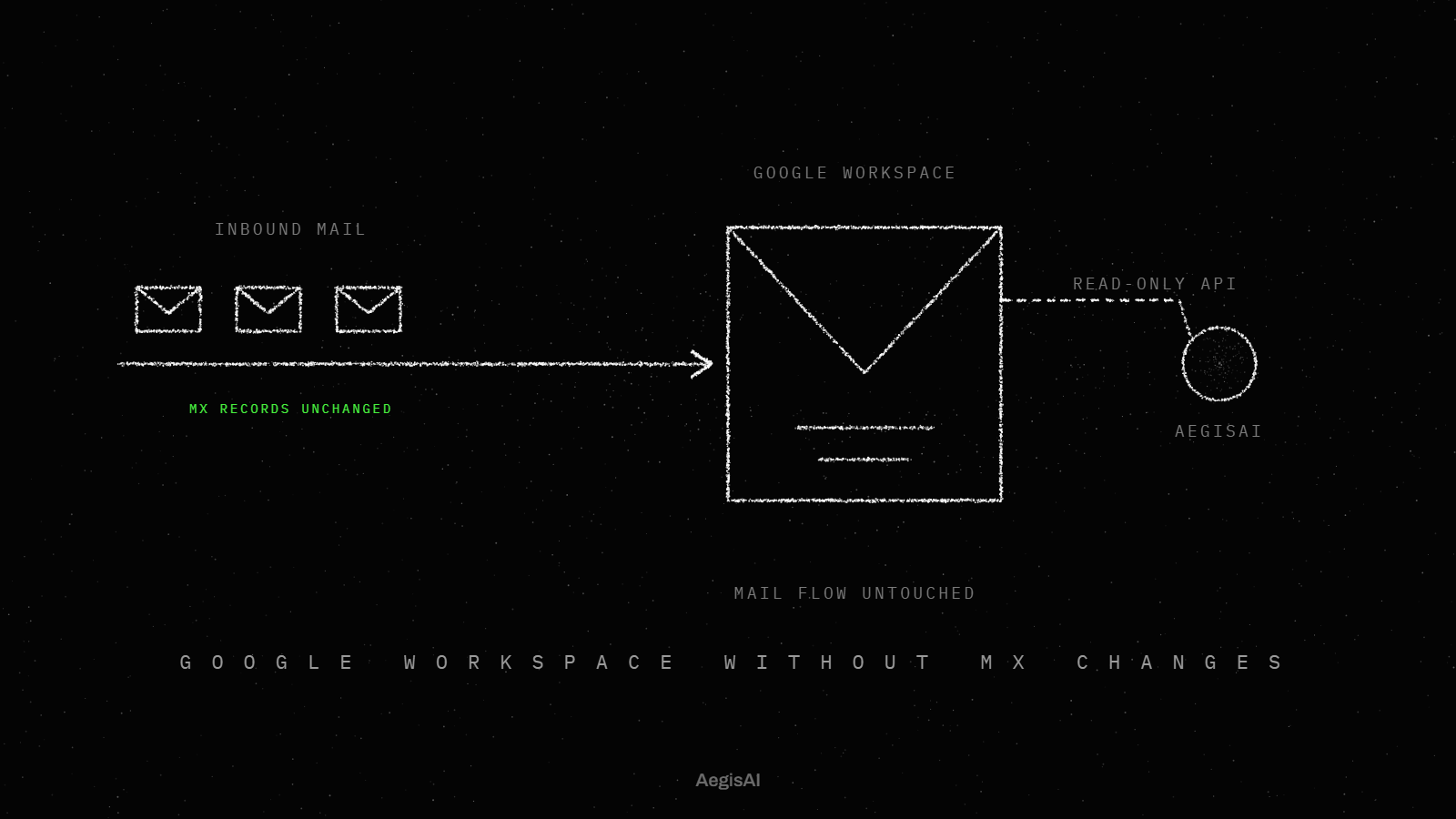
AegisAI connects to Google Workspace through the API, with no change to MX records23. If you run IT for a company of 20 to 500 people on Google Workspace, with a small IT or security team and no SOC, this page is your settings list. For the mail that passes every setting below, see how inbound email security investigates each message. For business email compromise controls, see how to protect Google Workspace from BEC. This page is the full Gmail safety list with defaults.
Key takeaways
- Most Gmail security settings sit under Menu > Apps > Google Workspace > Gmail1.
- The attachment and spoofing protections default to Keep email in inbox and show warning2.
- Automatic forwarding is on by default, and Google's checklist says to disable it12,16.
- SPF and DMARC are DNS records at your domain host, not Admin console settings10,9.
- The security health page monitors these Gmail settings in one view.
| Question | Answer | Source |
|---|---|---|
| What Gmail security settings should a Google Workspace admin turn on? | The Safety protections for attachments, links and spoofing; enhanced pre-delivery scanning; external recipient warnings; comprehensive mail storage; SPF, DKIM, DMARC. Turn off automatic forwarding and POP and IMAP for users who do not need them19 | Google Workspace Admin Help, 100+ user security checklist |
| Which of them are on by default? | Automatic forwarding and external recipient warnings are on by default,14. The spoofing protections default to Keep email in inbox and show warning5 | Google Workspace Admin Help |
| Where are they in the Admin console? | Under Apps > Google Workspace > Gmail, in Safety, Spam, Phishing and Malware, Compliance and End User Access,7,11 | Google Workspace Admin Help |
| Do SPF, DKIM and DMARC need the Admin console? | DKIM does: you generate the key under Authenticate email. SPF and DMARC are TXT records at your domain host8 | Google Workspace Admin Help |
| How do I check them all at once? | The security health page monitors these Gmail settings, and the Security advisor lists recommended ones,18 | Google Workspace Admin Help |
| What do these settings still let through? | AegisAI reports 3 in 10 confirmed phishing emails cleared native Gmail and Microsoft filters in Q3 202625 | AegisAI inbound email security page |
Work through the rows in order, then use the table further down as your checklist.
Short on time? Watch the explainer, or book a demo.
Publish SPF at your domain host. For Google Workspace alone, the record is v=spf1 include:_spf.google.com ~all.
Generate a DKIM key under Apps > Google Workspace > Gmail > Authenticate email, and select a 2048-bit key if your domain provider supports it.
Add a DMARC TXT record at _dmarc.yourdomain.com with p=none, after SPF or DKIM has run for at least 48 hours.
Open Apps > Google Workspace > Gmail > Safety and turn on every protection in its three groups. Leave Apply future recommended settings automatically on6.
Turn on enhanced pre-delivery message scanning in the Spam, Phishing and Malware section.
Under End User Access, turn off automatic forwarding. Turn off POP and IMAP for users who do not need them. Keep Warn for external recipients on,13.
Under Compliance, keep Require CA signed certificate and Validate certificate hostname on for secure transport. Configure MTA-STS (MTA Strict Transport Security), an extra layer of security for your outbound mail that the health page recommends.
Enforce 2-Step Verification for admins and the users who handle your most important data, with security keys for admins15.
Open the security health page and Menu > Security > Security advisor, and close anything still flagged.
Do steps 1 to 3 first: DMARC needs SPF or DKIM in place.
SPF and DMARC live at your domain host. The SPF record for Google Workspace alone is v=spf1 include:_spf.google.com ~all, with no step in the Admin console. DKIM is the one record you start in the console: generate the key under Authenticate email, then publish it at your host.
DMARC comes last: step 3 above has the record and the wait. Google's checklist puts all three records under one Authenticate email item.
Read your DMARC reports before you move the policy past p=none.
CISA's Secure Cloud Business Applications (SCuBA) Gmail baseline is one public mapping. It says the Gmail Safety protections SHALL be enabled21. POP and IMAP access SHALL be disabled. The DMARC rejection option SHALL be p=reject, and automatic forwarding SHOULD be disabled.
The baseline goes further than Google's p=none starting point. Use p=none to start, and plan the move to p=reject.
For most of this list, no. Google's edition comparison lists Advanced phishing and malware protection, the Safety settings above, for every Business, Education or Enterprise edition3. Security Sandbox is narrower: Business Standard or Plus, and Enterprise Standard or Plus.
Check your edition before you plan the Security Sandbox row.
Each attachment and spoofing protection offers three actions: Keep email in inbox and show warning, Move email to spam, and Quarantine. Keep email in inbox and show warning is the default for encrypted attachments and for scripts from untrusted senders, and for anomalous attachment types. It is also the default for all five spoofing and authentication settings.
The warning default leaves the message in the inbox. The user decides. Google's help page prints no recommended action, so the choice is yours. For the links and external images group, the page prints no default at all4.
Pick one action per protection and record it next to the row in the table below.
| Setting | Admin console path | Default | Recommended value |
|---|---|---|---|
| Encrypted attachments from untrusted senders | Apps > Google Workspace > Gmail > Safety | Keep email in inbox and show warning | On (Enable additional attachment protection) |
| Attachments with scripts, anomalous attachment types | Apps > Google Workspace > Gmail > Safety | Keep email in inbox and show warning | On (Enable additional attachment protection) |
| Links and external images (3 settings) | Apps > Google Workspace > Gmail > Safety | Not stated on the help page | On (Enable additional link and external content protection) |
| Spoofing and authentication (5 settings) | Apps > Google Workspace > Gmail > Safety | Keep email in inbox and show warning | On (Enable additional spoofing protection) |
| Apply future recommended settings automatically | Apps > Google Workspace > Gmail > Safety, each group | On | Leave on: new recommended settings turn on by default |
| Enhanced pre-delivery message scanning | Apps > Google Workspace > Gmail > Spam, Phishing and Malware | Not stated on the help page | On |
| Security Sandbox for all attachments | Listed in Menu > Security > Security advisor | Not stated on the help page | Listed as recommended; Business Standard or Plus, Enterprise Standard or Plus |
| Enhanced Safe Browsing for Gmail | Listed in Menu > Security > Security advisor | Not stated on the help page | Listed as recommended |
| DKIM | Apps > Google Workspace > Gmail > Authenticate email | Not stated on the help page | Generate a key, 2048-bit if your provider supports it |
| SPF | TXT record at your domain host, no Admin console step | None until you publish it | v=spf1 include:_spf.google.com ~all for Google Workspace alone |
| DMARC | TXT record at _dmarc.yourdomain.com, no Admin console step | None until you publish it | Start at p=none, 48 hours after SPF or DKIM |
| Secure transport (TLS) compliance | Apps > Google Workspace > Gmail > Compliance | Gmail always tries TLS | Keep Require CA signed certificate and Validate certificate hostname on |
| MTA-STS | Not given on the help page | Not stated on the help page | Configure it for outbound mail |
| Automatic forwarding | Apps > Google Workspace > Gmail > End User Access | On | Off (Disable automatic forwarding) |
| POP and IMAP access | Apps > Google Workspace > Gmail > End User Access | Not stated on the help page | Off for users who do not need it |
| Warn for external recipients | Apps > Google Workspace > Gmail > End User Access | On | On (Enable external recipient warnings) |
| Bypass spam filters for internal senders | Not given on the checklist | Not stated on the checklist | Off |
| Comprehensive mail storage | Not given on the checklist | Not stated on the checklist | On |
| 2-Step Verification | Not given on the help page | Not stated on the help page | Enforced for admins and users with your most important data, security keys for admins |
Where a cell says not stated, Google's page prints no value, so check the live setting in your own Admin console.
Gmail security settings still miss any message that passes every check: that message reaches the inbox. The Safety protections judge attachments and links. They also judge external images and spoofed senders. The inbound email security page reports that in Q3 2026, 3 in 10 confirmed phishing emails cleared native Gmail and Microsoft filters.
Review what reaches inboxes after these settings, not only what they block.
Track three numbers, each from a page in your Admin console or DNS.
To see what still reaches inboxes after day 30, start a monitoring-mode trial on your own tenant. Compare the three numbers on day 1 and day 30.
Turn on the Gmail Safety protections and enhanced pre-delivery scanning. Also turn on external recipient warnings and comprehensive mail storage. Publish SPF and DKIM, then DMARC. Turn off automatic forwarding and unneeded POP and IMAP. For mail that passes them, AegisAI investigates every email for what it is trying to do.
Yes. Automatic forwarding is on by default under End User Access. Google's 100+ user checklist says to disable it.
No. DMARC is a TXT record at your domain host, at _dmarc.yourdomain.com, and nothing is set in the Admin console. Start at p=none.
Select a 2048-bit key if your domain provider supports it. You generate it under Apps > Google Workspace > Gmail > Authenticate email.
The security health page monitors these Gmail settings in one view. The Security advisor, under Menu > Security, lists recommended Gmail settings and needs a super administrator.
Turn them off for users who do not explicitly need them. The setting is under Apps > Google Workspace > Gmail > End User Access.